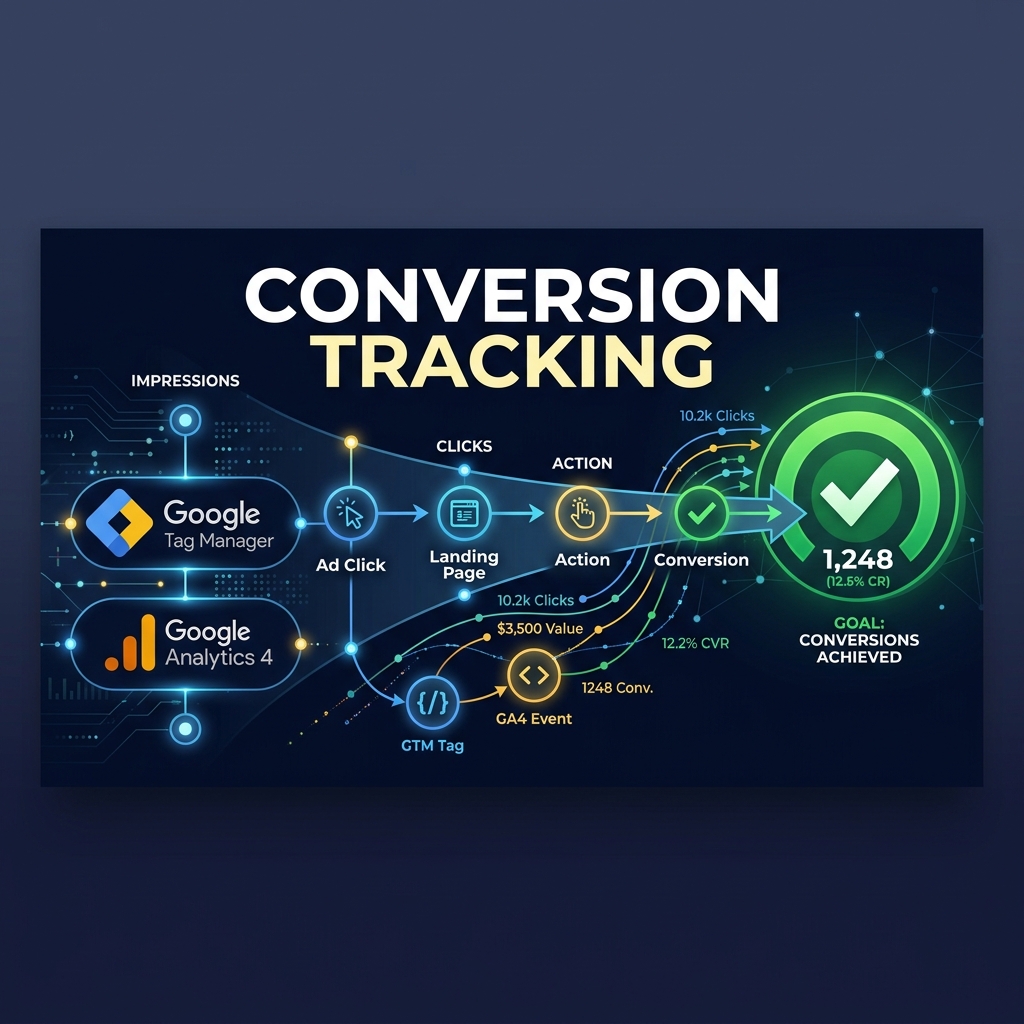
Accurate Google Ads conversion tracking is non-negotiable for running profitable paid ad campaigns. Without precise conversion data, Smart Bidding algorithms (like Target CPA and Target ROAS) cannot optimize effectively, leading to wasted ad spend and false performance metrics.
At Grothify, setting up server-side and client-side conversion tracking is step #1 for every PPC campaign. In this guide, we walk you through setting up Google Ads conversion tracking using Google Tag Manager (GTM) and Google Analytics 4 (GA4).
Are Your Conversions Tracking Correctly?
We’ll audit your GTM container, GA4 events, and conversion action settings for free.
Step 1: Create a Conversion Action in Google Ads
- Log into Google Ads → Goals → Conversions → Summary.
- Click + New Conversion Action and choose Website.
- Enter your website URL and select **Manual Creation with Code**.
- Set Goal Category (e.g. *Submit lead form* or *Purchase*).
- Assign a conversion value (static value for lead gen, or dynamic value for e-commerce).
- Set Count to **One** (for lead generation) or **Every** (for purchases).
- Copy your unique Conversion ID and Conversion Label.
Step 2: Deploy Google Tag Manager (GTM) Container
Deploying tags via GTM ensures your website code remains clean and fast. Create a GTM container and add the container script tags to your site’s <head> and <body> tags.
Add Conversion Linker Tag
In GTM, create a new tag → select **Conversion Linker**. Set Trigger to **All Pages**. This tag stores click data in first-party cookies to prevent tracking loss from browser privacy updates.
Step 3: Setup Google Ads Conversion Tag in GTM
- In GTM → Tags → New → Select **Google Ads Conversion Tracking**.
- Paste your **Conversion ID** and **Conversion Label**.
- Set Trigger: Create a **Custom Event** or **Form Submission** trigger (e.g. when user reaches
/thank-you/or submits `form_submit`). - Click **Save** and test using GTM Preview Mode.
Step 4: Enhanced Conversions Setup for 2026
Google’s **Enhanced Conversions** feature uses hashed first-party customer data (email address, phone number, name) sent securely to improve conversion attribution accuracy by 10–15%.
| Tracking Feature | Standard Tracking | Enhanced Conversions |
|---|---|---|
| Cookie Dependency | Third-party cookies (vulnerable) | Hashed first-party user data (SHA-256) |
| Cross-Device Accuracy | Moderate | High (tracks across multiple devices) |
| Conversion Lift | Baseline | 10% to 17% higher reported conversions |
Proper conversion tracking fuels our Google Ads bidding strategies for maximum Return on Ad Spend.
Fix Tracking Errors & Boost Your ROAS
Grothify configures advanced server-side tracking, GTM triggers, and GA4 dashboards.
Frequently Asked Questions
Why does Google Ads report different conversion numbers than GA4?
Google Ads attributes conversions to the date/time of the ad click (last Google Ads click attribution), while GA4 attributes conversions to the date/time of the actual event (cross-channel last click). Small discrepancies (5–10%) are normal.
Written by Mohammed Ouzair, PPC & Analytics Specialist at Grothify. Part of our Google Ads services. Follow on Instagram and LinkedIn.